How to block adult websites or people in iOS 7
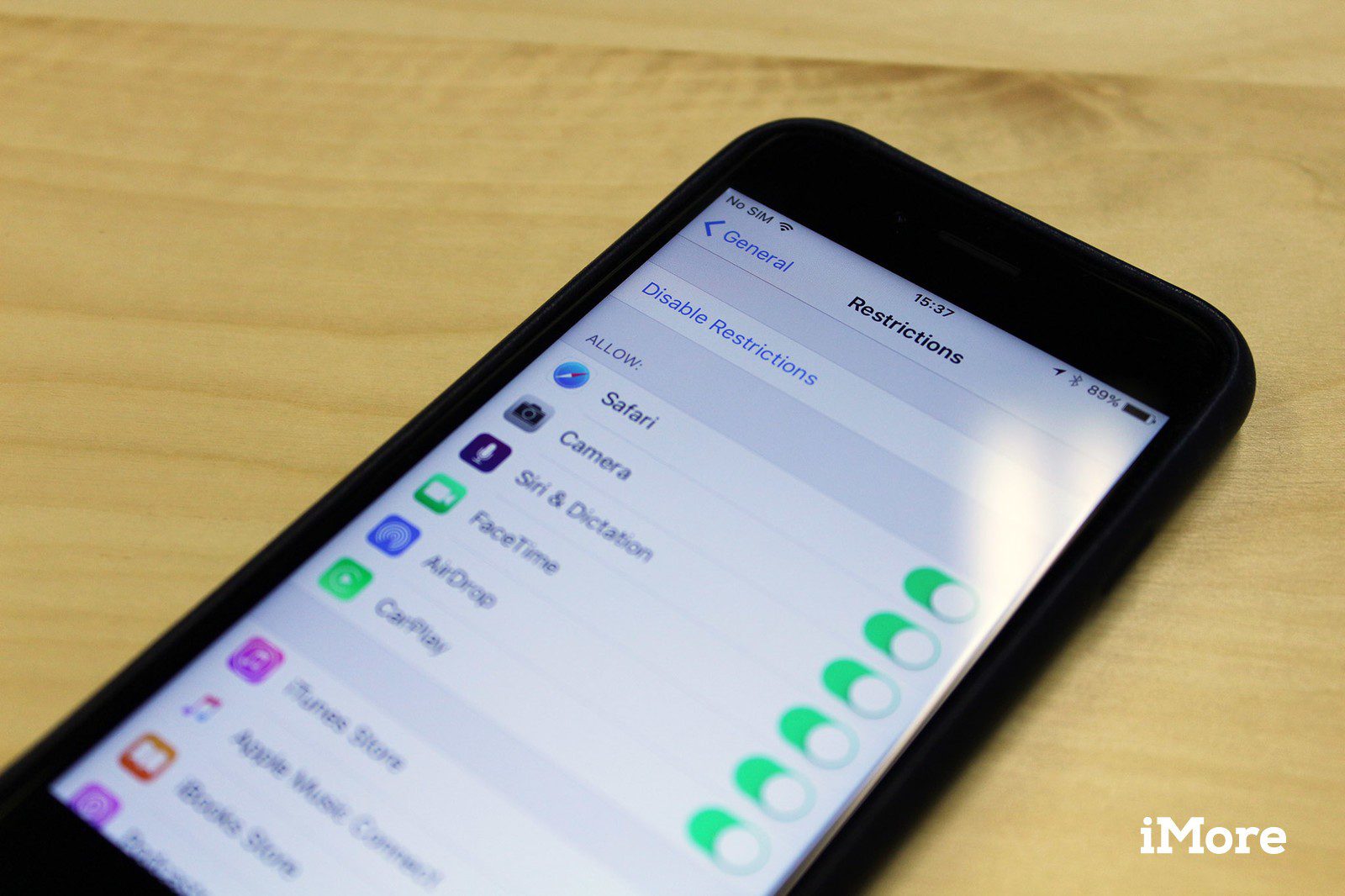
A smartphone displaying the 'Restrictions' settings screen, showing options to enable or disable access to apps like Safari, Camera, Siri & Dictation, and FaceTime; the phone rests on a wooden surface.

Block adult web content in iOS7 on iPods, iPads and iPhones

As you may know Apple does offer some level of parental control for iPods, iPhones and iPads through Restriction settings.

Now, with iOS 7, Apple has added website content filtering.

Here is how to set it up.  (These screenshots are from an iPad mini, but the instructions should work for any iOS 7 device)

1. From the child’s iDevice with the iOS 7 update, go to Settings > General > Restrictions.

2. If you have already set up restrictions, you’ll be prompted for the passcode.  If not, choose Enable Restrictions and enter a passcode.  Be sure to use a 4-digit passcode that you will remember and your kids will not guess.

This content requires a Cyber Safety Cop Family Membership. Please Login or Sign Up to access.

Make Your Safety
Plan Stronger

Choose a Family Premium Membership for continuous access to exclusive resources, monthly online risk updates, practical safety tools, and a free 30-minute counseling session, along with guides, videos, webinars, app reviews and curated content. 

Sign up for Family Pro Annual Plan

Free for first 7 days

Sign up for Family Pro Monthly Plan

Free for first 7 days

Sign up for Family Basic Annual Plan

Free for first 7 days

Sign up for Family Basic Monthly Plan

Free for first 7 days

Sign up for Family Premium Monthly Plan

Free for first 7 days

Sign up for Family Premium Annual Plan

Free for first 7 days